
“Connected without internet” means your device joined your Wi-Fi, but the network cannot reach the internet. Good news: most of the time, one of these sorts it out.
- 1.Restart the device that will not connect.
- 2.Power cycle your equipment: unplug your modem or gateway and router, wait 60 seconds, plug them back in.
- 3.Check whether your provider is having an outage.
- 4.Still stuck? Renew your IP address and look for a 169.254 address, which points to a DHCP problem.
Keep reading for the full walkthrough, from the easy wins to the deeper fixes.
“Wi-Fi connected without internet” is one of the most common (and frustrating!) home network problems. According to your WiFi icon, you should be getting a great signal, but in reality nothing loads.
This blog explains what “connected without internet” means and how to fix it.
What “Connected Without Internet” means
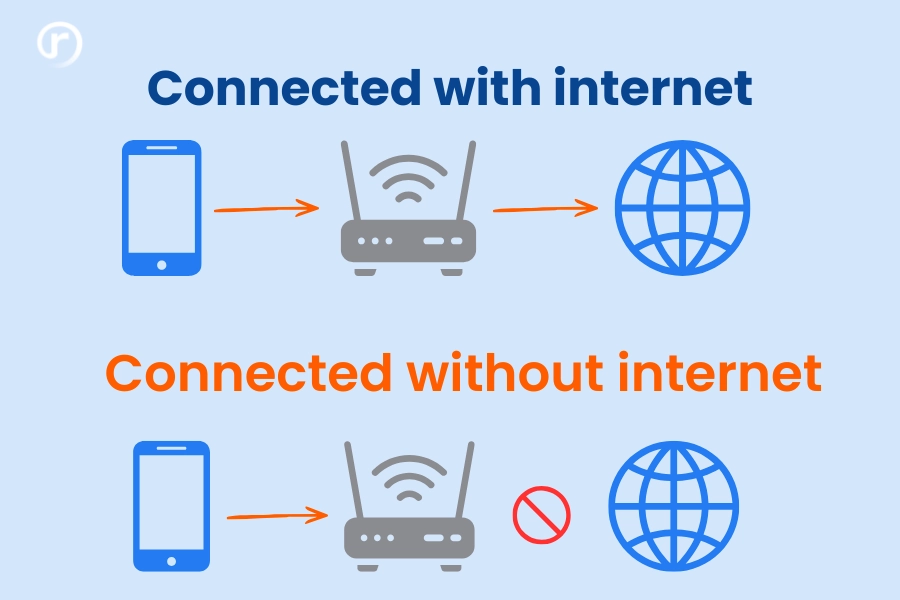
Your devices have successfully joined your WiFi network on your router, but that network can’t reach the internet.
The bars that show on your WiFi icon reflect just the connection between your device and your router, even when the connection between the router and the internet is cut.
Why is my WiFi connected but there is no internet?
Most of the time, the problem is in somewhere in the connection between your device, your router, and your internet provider:
- An internet outage. If your internet provider is down (due to maintenance or damage), your WiFi keeps working inside the home, but no device can reach the world wide web.
- A router or modem needs a reset. Overheating, a stalled process, or outdated firmware can stop your equipment from working as it should.
- A DNS or IP address problem. If your device has an invalid IP address, the pages won’t load even with a strong WiFi signal.
- No IP address from the router. Your devices “ask” your router for an address. If they don’t receive a valid one, they land in a “connected-but-not-working” state.
- A second router or extender causing a conflict. An extra device running on its own address can quietly cut internet access for everything connected to it.
- Cabling or hardware. A damaged Ethernet cable or a faulty port can break the link between your modem and the rest of your network.
Quick “Connected Without Internet” fixes to try first (5 minutes)
Chances are you probably tried these quick fixes already, before you came searching for solutions online. But just in case, here are the 5 minute easy fixes to the “connected without internet” problem:
1. Restart the device that can’t connect to WiFi
Worth trying before moving on to more complex fixes. Give your phone, computer, or gaming console a couple of minutes before turning it on again and trying to reconnect.
2. Power cycle your router
Turning it off and on again is the #1 troubleshooting tip from all ISP support teams – and for a reason.
- Unplug your router from power and wait at least 60 seconds.
- Plug it beack in and wait until the lights stabilize, between 1-3 minutes.
Look for an active internet light once everything is back up.
3. Turn WiFi off and on, or forget the network
If it’s just one device that can’t get online (just your laptop or just your phone), the problem is most likely in the device, not your router.
Switch the WiFi off, wait a few seconds, and switch it back on. If that doesn’t help, forget the network and rejoin it with your password.
4. Disable your VPN
A VPN can block traffic and cause connectivity issues. Turn it off temorarily and test agian. If the internet returns, reconnect the VPN to a different server.
5. Check whether it’s a provider outage
If all of your devices lost internet at the same time and restarting didn’t help, the problem might be an internet ourage, which is completely out of your hands.
- Check your provider’s service status page.
- If you are a Race Communications customer, check the service status page or contact support at 877.722.3833.
Once service is restored, all your devices will come back online.
“Connected Without Internet” Troubleshooting for Windows & Mac
1. Check your cables
Which cables you have depends on your type of connection:
- Fiber optics: make sure the fiber cable is in the ONT (the small box where fiber line enters your home) and that the ONT has power
- Cable: make sure the coax cable is screwed tightly at both the wall and the modem
- Look for bent connectors, fraying, or pet chew marks, and replace any cable that looks damaged.
2. Renew your IP address
By renewing your IP address, you ask your router for a refreshed start.
- Windows: Open the Command Promot, type ipconfig /release, press Enter, then type ipconfig /renew, and press Enter again.
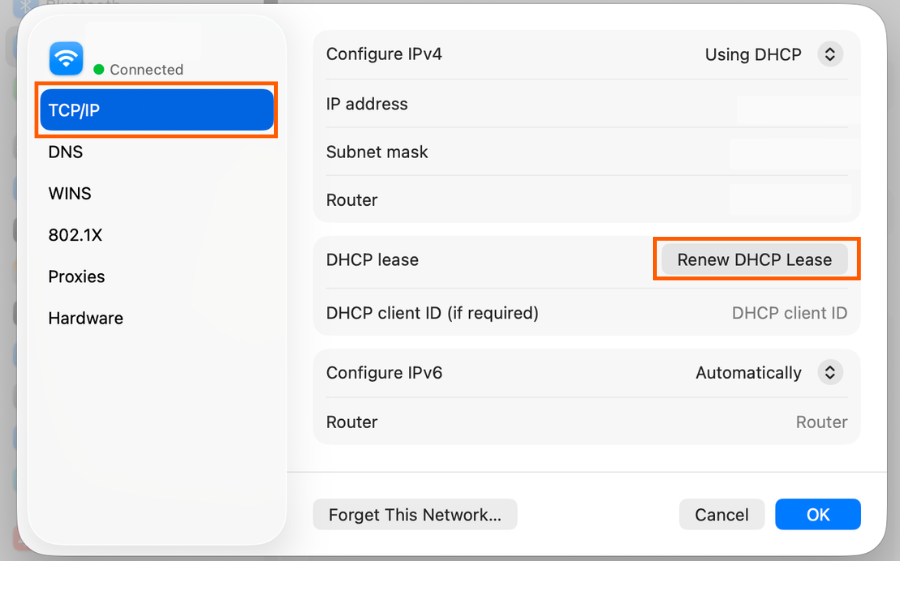
- Mac: Open System Settings, go to Network, select your WiFi, open Details or Advanced, then TCP/IP, and chose Renew DHCP Lease.
3. Look for a 169.254 address
While you’re in there, check your computer’s IP address.
- Windows: In Command Prompt, type inconfig and look at the IPv4 address.
- Mac: the address is shown on the same TCP/IP screen above.
In the address starts with 169.254, your device didn’t receive a valid address from your router. That’s a strong clue that the problem is a DHCP issue, a cable fault, or a second device on the network giving out addresses.
Now what? See the next chapter, “A DHCP or second router conflict”.
4. Check your DNS settings
If your IP address is fine (it is not starting with 169.254) but pages still won’t load, look into DHS settings next.
- Set DNS to automatic or use a public resolver such as as 8.8.8.8 (Google) or 1.1.1.1 (Cloudflare).
- Windows: Settings –> Network and Internet –> WiFi adapter –> DNS server asignment –> edit
- Mac: System Settings –> Network –> WiFi –> Details –> DNS
Connected Without Internet: A DHCP or second router conflict
DHCP is a service that gives IP addresses on your network. Normally, your router does this. But when devices can7t get an address, or two devices are trying to hand out addresses at once, problems ensue.
- Your device gets no address (169.254 result). Power cycle the router. If no device on the network gets a valid address, the router’s DHCP service or the router itself needs attention.
- A WiFi extender or second router is running its own network. An incorrectly set up extender or second router can run its own address and come in conflict with your main router. To rule this out, turn the extender off so only your main router is online.
- A device is blocked from the network. Some routers use address filtering to only allow specific devices on. If a device was never added to the allowed list, it can connect to WiFi, but is denied a further path to the internet. Check your router’s settings.
If you rent your equipment from your ISP, contact support before trying to solve everything by yourself. They can help you through remote troubleshooting.
Other Fixes for “Connected Without Internet”
Update your network drivers
An outdated network driver can cause random drops, especially on Windows:
- Open Device Manager –> Network adapters –> Right click on. your adapter –> choose Update driver.
- You can also download the latest driver from your device manufacturer’s support page.
- Restart after updating. If things get worse, use Roll Back Driver in the same menu.
Reset your network settings
This fix clears every custom network setting and returns things to default, which resolves stubborn cases.
Remember your WiFi password and any custom settings, because you will need to set them up again.
- Windows: Settings –> Network and Internet –> Advanced network settings –> Network reset.
- Mac: remove the WiFi service under Network and add it back, then reconnect.
How to prevent “Connected Without Internet” from happening again
These habits will keep your WiFi connection steady for years to come:
- Let your router handle its own firmware updates. Most modern routers, and the equipment Race provides, update themselves automatically in the background.
- If you own an older third-party router, check its app or admin page once in a while for a manual update.
- Place your router in a central location in your home, away from thick walls, metal, and large appliances.
- Replace an old router that struggles to keep up.
- Use the faster band (5 GHz) for all nearby devices and the longer-range band (2.4 GHz) for devices further from the router.
Still stuck connected but with no internet?
If you have gone through the steps above and you are still connected without internet, it’s time to reach out.
Before you call, provide the customer support following information:
- The error you are seeing and when it happens
- Whether one device or every device is affected
- The steps you have already tried
- Your account of service address
Race Communications customers can check current service status or reach our support team at 877.722.3833.
Tired of Wi-Fi that quits on you?
No coax, no copper. Race is 100% fiber straight to your door. See if it is available at your address.
Check availability at RaceAlready a customer? Call support at 877.722.3833
It means your device has successfully joined your Wi-Fi network, but that network cannot reach the wider internet. The link between your device and your router is working. The link between your router and your provider is not. That is why the Wi-Fi icon shows a connection while pages will not load.
The most common reasons are a provider outage, a router or modem that needs a restart, a DNS or IP address problem, or a device that is not receiving a valid IP address from your router. A second router or extender running its own network can also cause it.
Start with the quick fixes. Restart your device, power cycle your modem and router, and check whether your provider is reporting an outage. If that does not work, renew your IP address, check your DNS settings, and look for a self-assigned address that starts with 169.254. Most cases are resolved by one of these steps.
The cause is the same as on a computer. Your phone has joined the Wi-Fi network but cannot reach the internet through it. Toggle Wi-Fi off and on, forget the network and rejoin it, and confirm other devices in the home have the same issue. If only your phone is affected, the problem is likely on the phone rather than the network.
An address that begins with 169.254 is a self-assigned address. It means your device asked your router for an IP address and did not receive one. This usually points to a DHCP problem on the router, a cabling fault, or a second device on the network trying to hand out addresses. Renewing the IP address or restarting the router often fixes it.
If every device in your home loses internet at the same time and a restart does not help, an outage is more likely. If only one device is affected, the issue is usually with that device. You can confirm by checking your provider’s service status or contacting support.
Yes. An extender or a second router that is not in the correct mode can run its own address service and conflict with your main router. This can leave devices connected to Wi-Fi with no path to the internet. Setting the extender to bridge or access point mode, or turning off its address service, usually resolves it.